
Creating and Managing Brackets in GameSheet
Accessing Brackets
Brackets can be accessed from the Brackets tab within the Games section of the Admin Dashboard. To find this:
- Navigate to your Season in the Admin Dashboard.
- Locate the Games section.
- Click the View Brackets button.

Creating a New Bracket
You can create as many brackets as needed for your season. Each bracket can contain up to 7 games, and games can be assigned to multiple brackets. To create a new bracket:
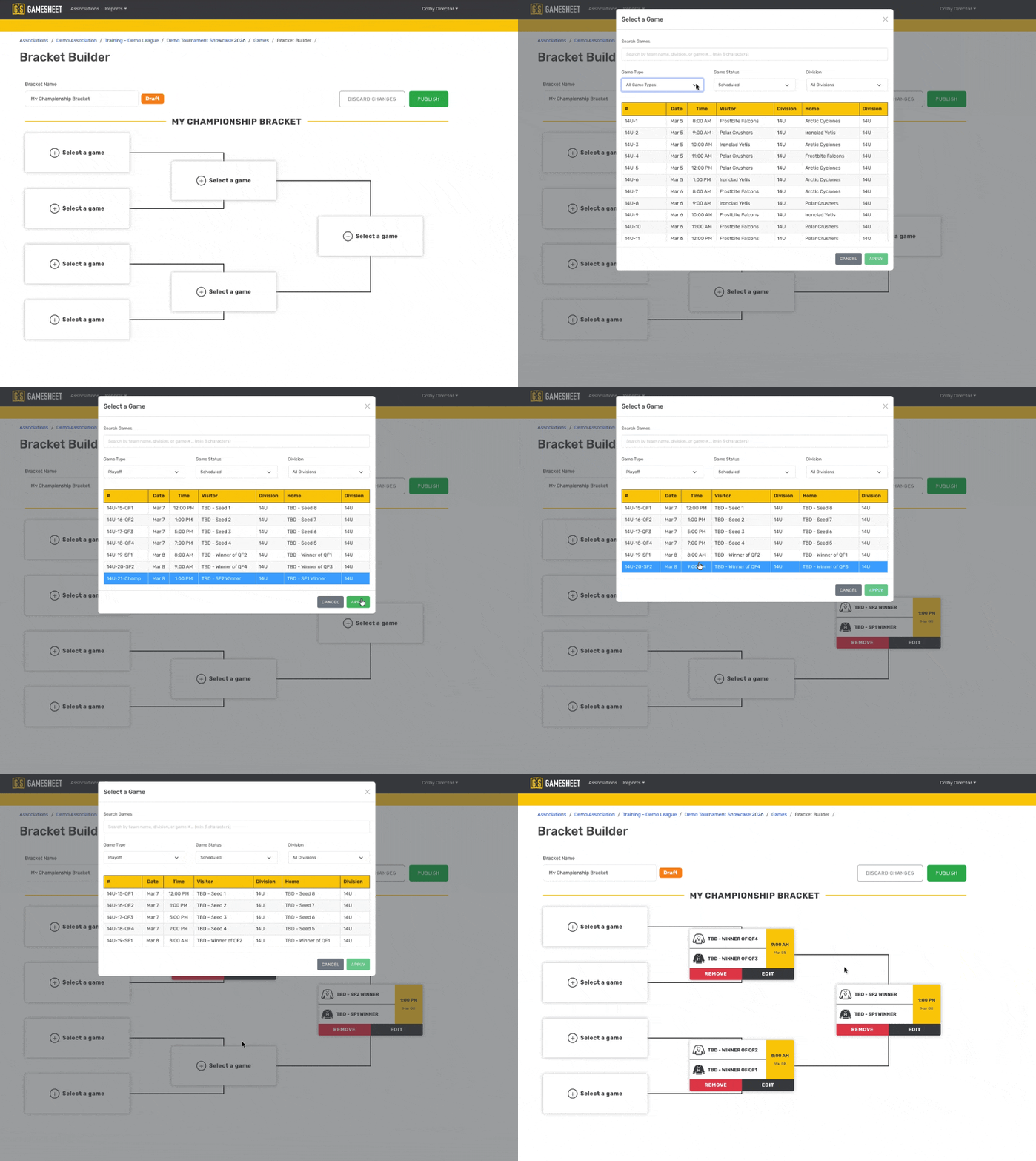
- Click the + New Bracket button. This will generate an "Untitled Bracket."
- Update the title of the bracket.
- Begin assigning games to bracket slots:
- Click on a slot.
- Select a game from the list.
- Save Changes & Publish your Bracket by clicking the "Publish" button at the top right
Updates are published to the Stats Widget immediately, so your bracket is visible as soon as changes are made.
Pro Tip
It is also possible to assign to brackets and edit those games by using the game upload CSV tool.
Viewing Brackets in the Stats Widget
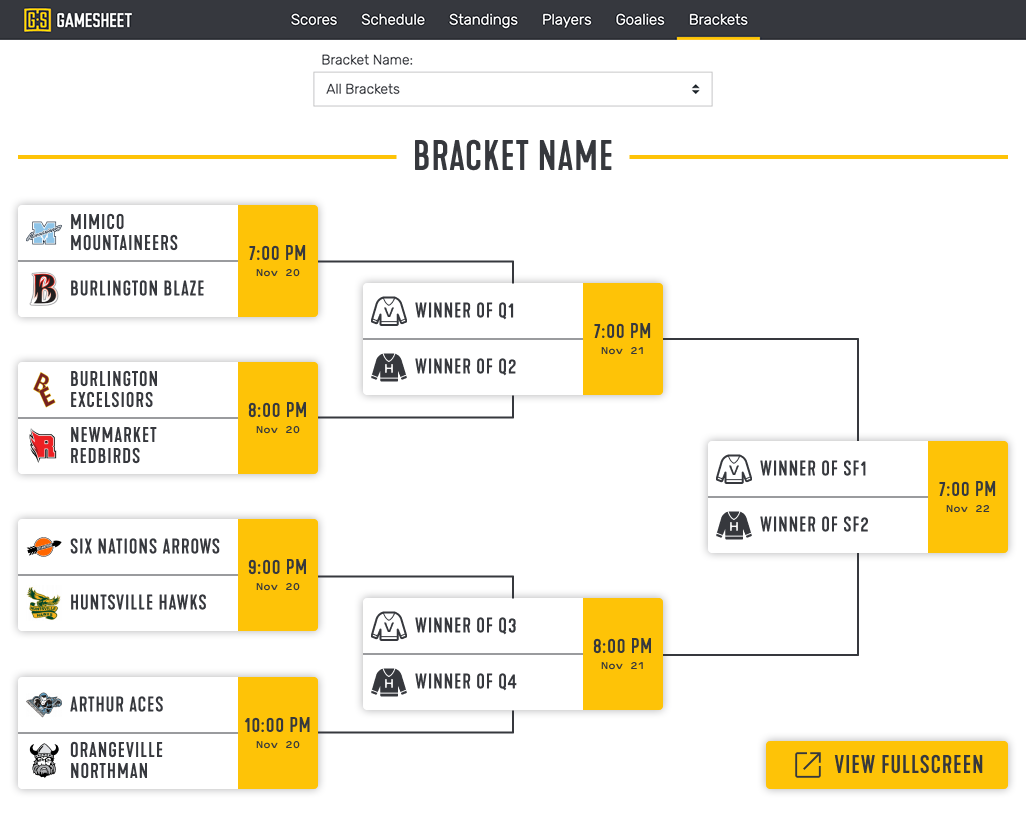
Once a bracket is created, a Brackets page is automatically added to your Stats Widget.
Additionally, a link to the Brackets page is added to the Standings page, ensuring easy access even if the primary navigation is hidden.
Automatic Updates
Updating your bracket requires no additional effort beyond updating the scheduled games as teams advance. The bracket will automatically reflect:
- Schedule updates.
- Live game status.
- Completed game results.
Pro Tip
In order to make sure games are placed correctly in the Bracket, start by adding the Final first, then work backward to the Semifinal and Quarterfinal games!